Getting Started with Mods
Follow these steps to configure and run mods on your Valheim server.
Step 1: Set the TYPE Variable
Set the TYPE environment variable to one of the following options:
| Type | What It Installs |
|---|---|
| Vanilla | The default and most common installation type. This will run Valheim normally. |
| BepInEx | Installs BepInEx from this package. It includes only the minimal components required for BepInEx. |
Step 2: Configuring Mods
If you do not wish to install additional mods, you can skip this step. Otherwise, use the MODS environment variable to specify the mods you want to add. There are two options:
Option A: Using R2ModMan’s Mod List Feature
- In R2ModMan, click Settings.
- Click Mod Packs.
- Click Show Dependency Strings.
- Copy everything except the BepInEx dependency (this will be installed via
TYPE).
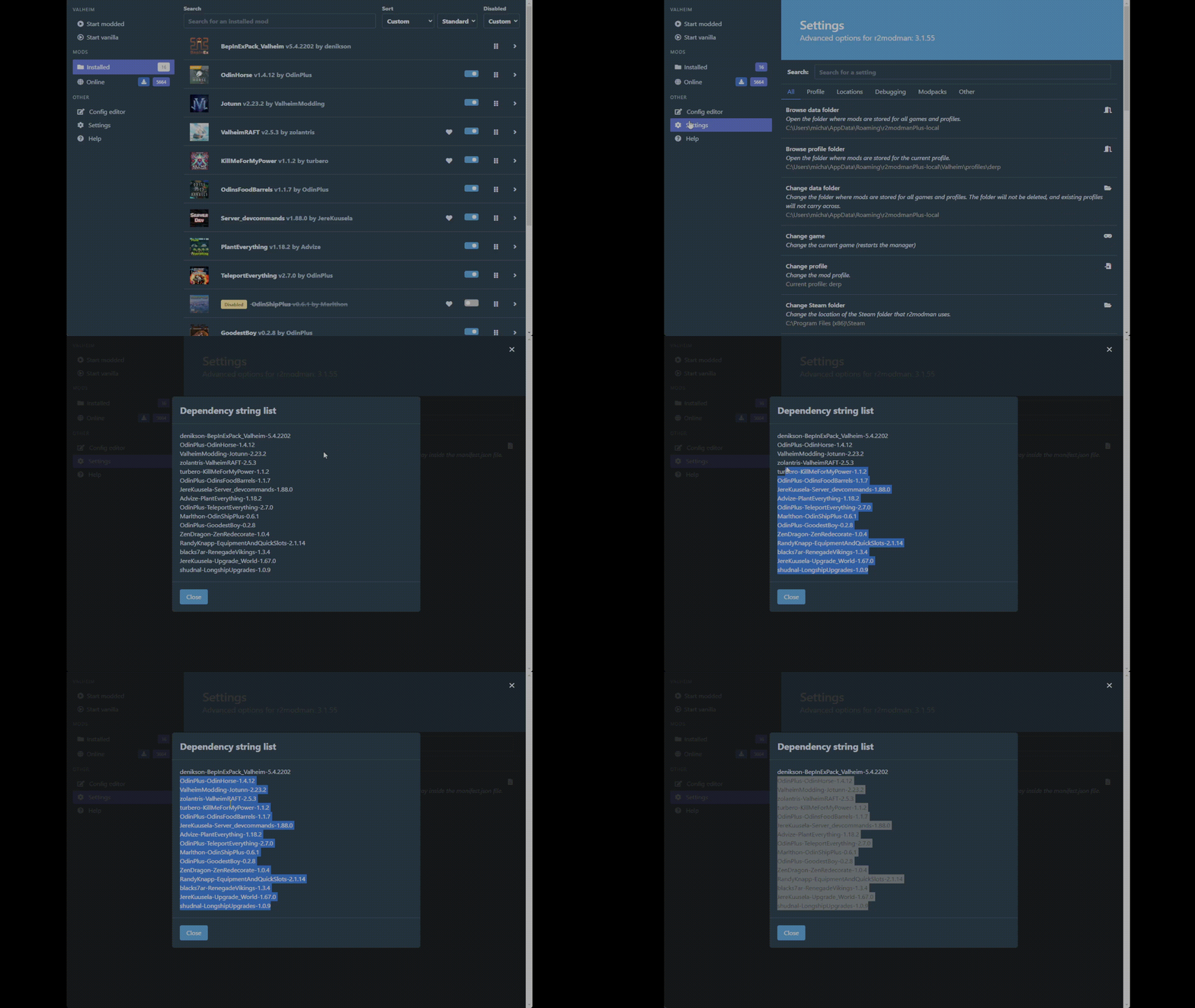
Example configuration:
version: "3"
services:
  valheim:
    image: mbround18/valheim:3
    user: "1000:1000"
    environment:
      # The TYPE variable sets the server type.
      - TYPE=BepInEx
      # The MODS variable is a newline-separated list of mods.
      - |
        MODS=OdinPlus-OdinHorse-1.4.12
        ValheimModding-Jotunn-2.23.2
        zolantris-ValheimRAFT-2.5.3
        turbero-KillMeForMyPower-1.1.2
Option B: Using Mod URLs
Specify mods by providing their URLs. Ensure that each URL is followed by a newline to be valid.
Example configuration:
version: "3"
services:
  valheim:
    image: mbround18/valheim:3
    user: "1000:1000"
    environment:
      # The TYPE variable sets the server type.
      - TYPE=BepInEx
      # The MODS variable is a comma and newline separated list of mod URLs.
      # Each mod URL must end with a newline.
      - "MODS=
        https://cdn.thunderstore.io/live/repository/packages/abearcodes-SimpleRecycling-0.0.10.zip,
        https://cdn.thunderstore.io/live/repository/packages/abearcodes-CraftingWithContainers-1.0.9.zip
        "
Step 3: Run Docker Compose
Once your configuration is set up, start your server by running:
docker compose up
Note: Odin automatically detects if you are running with BepInEx and adjusts the environment variables accordingly.
DISCLAIMER: Modding your server can cause unexpected errors.
- Do not open an issue on the
valheim-dockerrepository for mod-related problems.- By installing mods, you agree to perform a root cause analysis on any server failures before reporting them.
- Modding is currently unsupported by the Valheim developers and receives only limited support from the
valheim-dockerrepository.- If you encounter issues, please contact the mod developer first, referring to the output logs for details.
Additional Help with Valheim Updates
Mod development can be slow, and having many mods installed may complicate updates. It is recommended that you:
- Disable the
AUTO_UPDATEvariable when using mods. - Refrain from updating your local client until all your mods have been updated.
Some mods may break with new Valheim updates, while others will not. Stay vigilant for mod-related issues when updating your server.
Wildcard Version Patterns
You can reference mods with wildcards to automatically resolve the latest compatible release when the server starts.
Author-Package-*→ latest available versionAuthor-Package-1.*→ latest patch within major version 1 (e.g., 1.2.3 → 1.x.x)Author-Package-1.2.*→ latest patch within minor version 1.2 (e.g., 1.2.3 → 1.2.x)
Example:
services:
  valheim:
    user: "1000:1000"
    environment:
      - TYPE=BepInEx
      - |
        MODS=ValheimModding-Jotunn-*
        OdinPlus-OdinHorse-1.4.12
Recommendations:
- Use exact versions in production for reproducibility and easier rollbacks
- If you rely on wildcards, consider disabling automatic updates to avoid breaking changes until you’ve validated your mod set
Special Note: Installing ValheimPlus
ValheimPlus is installed differently from other mods because it’s distributed as a DLL file rather than through Thunderstore. For a complete guide on installing and configuring ValheimPlus, see ValheimPlus Installation.
Quick example:
environment:
  - TYPE=BepInEx
  - MODS=https://github.com/Grantapher/ValheimPlus/releases/download/0.9.16.2/ValheimPlus.dll